

How To Install and Use Composer on Ubuntu 20.04
Introduction
Composer is a popular dependency management tool for PHP, created mainly to facilitate installation and updates for project dependencies. It will check which other packages a specific project depends on and install them for you, using the appropriate versions according to the project requirements. Composer is also commonly used to bootstrap new projects based on popular PHP frameworks, such as Symfony and Laravel.
In addition to dependencies that should be already included within your Ubuntu 20.04 system, such as git and curl, Composer requires php-cli in order to execute PHP scripts in the command line, and unzip to extract zipped archives. We’ll install these dependencies now.
1.
sudo apt update
2.
sudo apt install php-cli unzip
3.
Make sure you’re in your home directory, then retrieve the installer using curl:
cd ~
curl -sS https://getcomposer.org/installer -o composer-setup.php
4.
HASH=`curl -sS https://composer.github.io/installer.sig`
5.
echo $HASH
Output
e0012edf3e80b6978849f5eff0d4b4e4c79ff1609dd1e613307e16318854d24ae64f26d17af3ef0bf7cfb710ca74755a
6.
Now execute the following PHP code, as provided in the Composer download page, to verify that the installation script is safe to run:
php -r "if (hash_file('SHA384', 'composer-setup.php') === '$HASH') { echo 'Installer verified'; } else { echo 'Installer corrupt'; unlink('composer-setup.php'); } echo PHP_EOL;"
You’ll see the following output:
Output
Installer verified
If the output says Installer corrupt, you’ll need to download the installation script again and double check that you’re using the correct hash. Then, repeat the verification process. When you have a verified installer, you can continue.
To install composer globally, use the following command which will download and install Composer as a system-wide command named composer, under /usr/local/bin:
sudo php composer-setup.php --install-dir=/usr/local/bin --filename=composer
You’ll see output similar to this:
Output
All settings correct for using Composer
Downloading...
Composer (version 1.10.5) successfully installed to: /usr/local/bin/composer
Use it: php /usr/local/bin/composer
https://www.digitalocean.com/community/tutorials/how-to-install-and-use-composer-on-ubuntu-20-04

How to Install Atom Text Editor on Ubuntu 20.04
1.
wget -q https://packagecloud.io/AtomEditor/atom/gpgkey -O- | sudo apt-key add -
2.
sudo add-apt-repository "deb [arch=amd64] https://packagecloud.io/AtomEditor/atom/any/ any main"
3.
sudo apt update
4.
sudo apt install atom
/lib/systemd/system/gammu-smsd.service:9: Neither a valid executable name nor an absolute path: ${CMAKE_INSTALL_FULL_BINDIR}/gammu-smsd
/lib/systemd/system/gammu-smsd.service:9: Neither a valid executable name nor an absolute path: ${CMAKE_INSTALL_FULL_BINDIR}/gammu-smsd
In order to resolve the above error I had to do the following steps:
sudo cp /lib/systemd/system/gammu-smsd.service /etc/systemd/system/
// Edit line number 9
sudo gedit /etc/systemd/system/gammu-smsd.service +9
Enter the absolute path in within that file in my case:
ExecStart=/usr/bin/gammu-smsd --pid=/var/run/gammu-smsd.pid --daemon
So remove the following it looks something like:
${CMAKE_INSTALL_FULL_BINDIR}/gammu-smsd
And replace that with the absolute path.
done!!
https://superuser.com/questions/1549054/broken-or-misconfigured-gammu-smsd-on-kali
How to install Unetbootin on Ubuntu 20.04 or 18.04 LTS
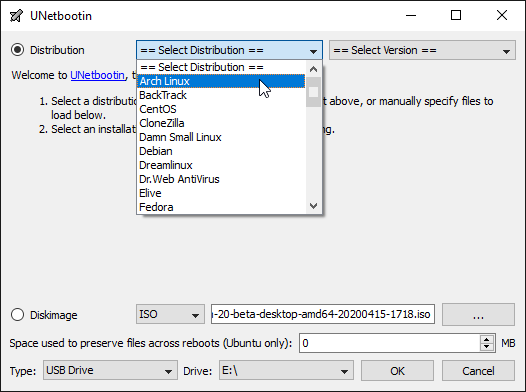
sudo add-apt-repository ppa:gezakovacs/ppa
sudo apt-get update
sudo apt-get install unetbootin
https://www.how2shout.com/how-to/how-to-install-unetbootin-on-ubuntu-20-04-or-18-04-lts.html
How to locate php.ini file to /opt/lampp Laravel UBUNTU
Apparently i a little confuse when i use laravel,
because in my machine has multiple php version running
i need my laravel use this /opt/lampp/ for base machine
first you can download and install xampp-linux-5.5.35-0-installer.run or any version xampp-linux-xxx.xxx-installer.run
sudo chmod +x xampp*
./xampp*
and it will install on /opt/lampp
and then add path to /opt/lampp
How to locate php.ini file to /opt/lampp Laravel
sudo xed /etc/environment
or
sudo gedit /etc/environment
PATH="/usr/local/sbin:/usr/local/bin:/usr/sbin:/usr/bin:/sbin:/bin:/usr/games:/usr/local/games:/opt/lampp/bin"
restart your computer
done!!!
Configuration File (php.ini) Path: /opt/lampp/etcphp --ini
Loaded Configuration File: /opt/lampp/etc/php.ini
Scan for additional .ini files in: (none)
Additional .ini files parsed: (none)