
Tampilkan postingan dengan label Vbox. Tampilkan semua postingan
Tampilkan postingan dengan label Vbox. Tampilkan semua postingan
How to recognize USB devices in Virtualbox running on a Linux host
sudo adduser $USER vboxusers
sudo addgroup usbfs
sudo adduser $USER usbfs
cat /etc/group | grep usbfs
echo "none /proc/bus/usb usbfs devgid=1004,devmode=664 0 0" | sudo tee -a /etc/fstab
Reboot mesin yang kita gunakan agar group baru & user permission dapat di update.

VirtualBox 4.2.0 Released: Install It In Ubuntu 12.04 (Precise Pangolin)
VirtualBox 4.2 which supports drag n’ drop from guest machine to host
is finally released, and this brief tutorial is going to show you how
to install it in Ubuntu 12.04 Precise Pangolin.
If you don’t know, VirtualBox is a virtualization software which helps you run multiple virtual machines (Windows, Linux, Mac) on a single host computer. This technology is a great way to install Windows, Linux and Mac on one computer instead of separate and individual systems.
For a complete changelog on this release, please click here.
Objectives:
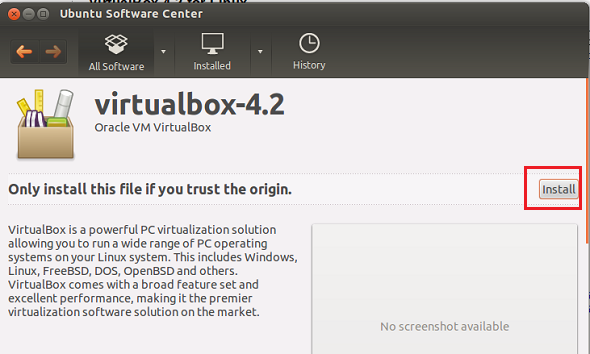
Save the file, then open and install it with Software Center.

After installing, launch it from Dash. If you don’t see it in Dash right away, log out and log back in, then search for it again.

If you don’t know, VirtualBox is a virtualization software which helps you run multiple virtual machines (Windows, Linux, Mac) on a single host computer. This technology is a great way to install Windows, Linux and Mac on one computer instead of separate and individual systems.
For a complete changelog on this release, please click here.
Objectives:
- Install VirtualBox 4.2 in Ubuntu 12.04
- Enjoy!
Save the file, then open and install it with Software Center.
After installing, launch it from Dash. If you don’t see it in Dash right away, log out and log back in, then search for it again.
How to install virtualbox on ubuntu 4.x on ubuntu 11.04(Natty)
 |
| How to install virtualbox on ubuntu 4.x on ubuntu 11.04(Natty) |
Install virtualbox 4.x on ubuntu 11.04
You need to edit /etc/apt/sources.list
gksudo gedit /etc/apt/sources.list
Add the following line
deb http://download.virtualbox.org/virtualbox/debian natty contrib
Save and exit the file
wget -q http://download.virtualbox.org/virtualbox/debian/oracle_vbox.asc -O- | sudo apt-key add -
Update source list
sudo apt-get update
Install virtualbox
sudo apt-get install virtualbox-4.0
Note: Ubuntu/Debian users might want to install the dkms package to ensure that the VirtualBox host kernel modules (vboxdrv, vboxnetflt and vboxnetadp) are properly updated if the linux kernel version changes during the next apt-get upgrade. For Debian it is available in Lenny backports and in the normal repository for Squeeze and later. The dkms package can be installed through the Synaptic Package manager or through the following command:
sudo apt-get install dkms
Langganan:
Postingan (Atom)